

Bishop Wordsworth's Church of England Grammar School
Parents
MCAS
BWS uses My Child at School (MCAS) to provide you with as many services as possible under one single log-in. Access guides for MCAS are shared upon enrolment and copies are at the end of this page. If you have a question which is not addressed on this page, please refer to the MCAS User Guide at the bottom of this page.
Activating your Account
If you are a primary contact with parental responsibility for one of our students, you should have received your MCAS log in details from BWS.Bromcom@bws-school.org.uk. If you have not received this email, please check your spam folder.
Click on the link in the email to set up your password which must be at least 8 characters long and must include:
- 1 lower case character
- 1 upper case character
- 1 numeric character
- 1 special character
If your link expires before you are able to use it, please use the email address you have registered with us to reset your password here
Logging in to your account
Log in using your registered email address and password here
Q: What do I do if I’ve forgotten my password?
A: Use the email address you have registered with us to reset your password here
Q: What do I do if I’ve forgotten my email address?
A: Contact the School at ict@bishopwordsworths.org.uk
Web version vs App version
MCAS can either be accessed via your browser or via the MCAS App which can be downloaded from the Apple App Store or Google Play. For further information on both versions, please see the guides at the foot of this page.
Web Version
When using MCAS on a computer, you will see a Dashboard consisting of widgets and a side menu. Some widgets have a ‘More’ button which takes you to that specific page.
The order of the widgets can be changed by dragging and dropping.
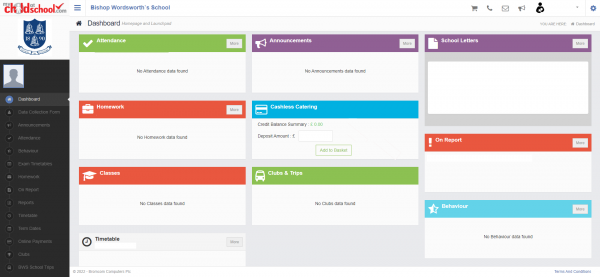
You may have to scroll down to see all items on the side menu. The full menu is:
| Data Collection Form | Appear when relevant |
| Announcements | |
| Attendance | A record of your child's attendance will be found here. Please note it is not possible to notify us of absence through this portal. |
| Behaviour | A full breakdown of your child's positive and negative behaviours will be available here. Behaviour alerts are issued via email in the evening at 18:30, these will alert you to incidents logged during the school day. |
| Detentions | Scheduled locations and times will be shown where relevant |
| Exam Timetables | Only available for examination years |
| Homework | Your child's homework is set via Microsoft Teams |
| Assessment | Copies of your child's current predicted grades can be found here. Clicking a subject and then clicking the grade will provide access to end of module tests and other assessments. |
| Reports | Here you can see all school reports issued. All year groups receive 3 reports per year and an email will be sent via MCAS to notify you when a new report is available. Information on how to access your child's report can be found here. |
| Timetable | A full copy of your child's timetable including rooming and staff codes |
| Term Dates | Term dates for the current academic year. Term dates for future academic years can be found here |
| Online Payments | Books, clubs, subs etc |
| Clubs | Paid clubs that your child is enrolled in (e.g. Fencing, Coding) |
| BWS School Trips | Trips your chid is signed up for and new trips |
| Dinners | For details of your child’s cashless catering purchases |
| Parental Consent | For parental consent, including data protection, ICT use, periodic updates of communication details, trip procedures etc. |
| Outstanding Payments | Trip instalment payments and special orders |
| School Letters |
App Version
The MCAS uses a side menu and pages, which are accessed by pressing the three lines in the top left corner.
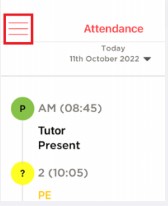
The side menu contains many of the same options as above but please note not all information is accessible on the app.
Cashless Catering
You may top up your child’s account for purchasing canteen food at any time. If their balance becomes overdrawn you will be sent an automatic reminder.
Please note that you may still receive a reminder if you have topped up during the previous 24 hours due to the times that MCAS syncs with our catering system.
Web Version
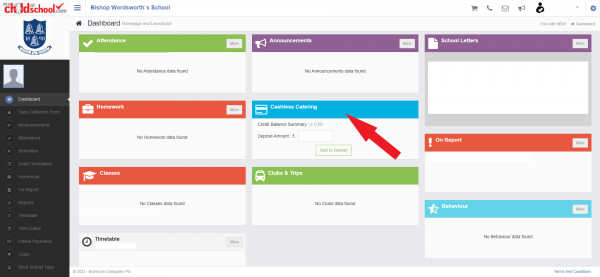
Catering top ups are via the widget on the main screen and cannot be accessed from the side menu.
App Version
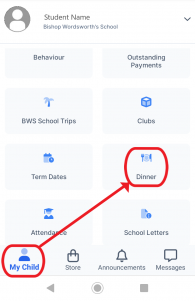
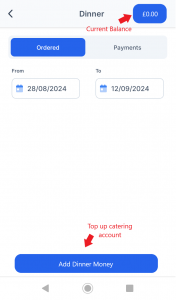
Scroll down on the 'My Child' tab and select 'Dinner'. From here you can see you child's purchases, top up their balance and see your previous dinner money top-ups.
School Trips
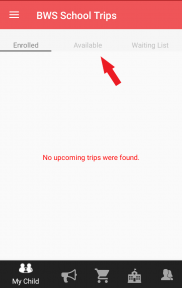
The ‘BWS School Trips’ option is only available from the side menu. Selecting this option will display any trips that your child is already signed up for and any new trips that are available. To see new trips on the MCAS App, you must select the ‘Available’ tab.
For a trip with instalment payments, after you have paid the deposit, further payments should be made from ‘Outstanding Payments’ which is available as both a widget and side menu option in MCAS Web and from the side menu only in the MCAS App.
Other Payments
All payment items other than trips can be found under the ‘Online Payments’ option on the side menu of both MCAS Web and the MCAS App.